What Internet Speed Do You Need for IPTV in 2026? Complete Bandwidth, Latency & Optimization Guide
In the modern era of cord-cutting, few technical frustrations rival the dreaded buffering wheel. You sit down on a weekend afternoon to watch a high-stakes Premier League match, an NFL playoff game, or the season finale of your favorite television series, only for the broadcast to freeze every forty-five seconds. The screen stutters, the audio falls completely out of sync, or the player drops connection entirely. Confused, you immediately run a quick broadband speed test on your smartphone or laptop, and the gauge proudly displays a blistering 300 Mbps or 500 Mbps download speed.
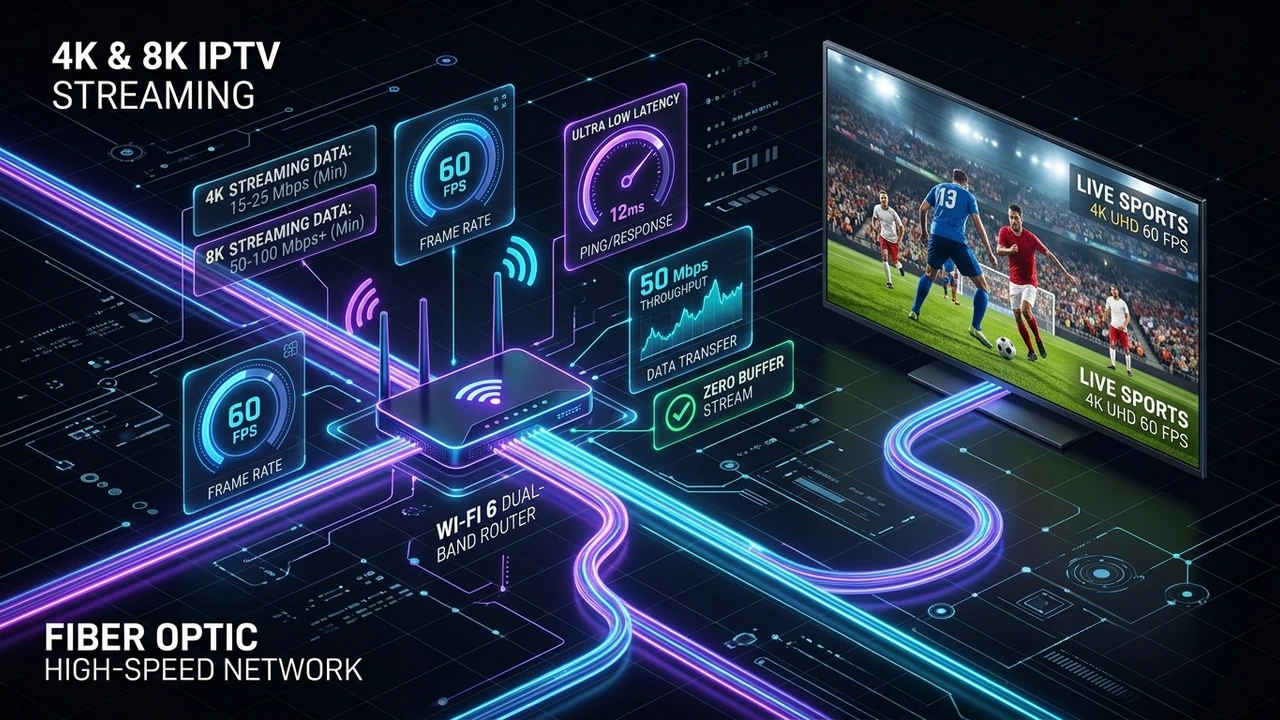
How can an internet connection capable of downloading multi-gigabyte files in seconds struggle to stream a live television channel that only requires 15 to 25 Megabits per second?
The answer lies in the fundamental engineering difference between standard web browsing and continuous, real-time linear video streaming. While on-demand platforms like Netflix, Amazon Prime Video, and YouTube utilize multi-minute content caching and extensive local edge servers, live television streaming via IPTV operates with virtually zero margin for error. A live sporting event cannot be cached twenty minutes in advance; every single video frame must be transported from satellite downlinks, through transcoding clusters and Content Delivery Networks (CDNs), across residential internet backbones, through your home Wi-Fi environment, and onto your streaming display in near real-time.
In this definitive 2026 technical guide, we will dismantle the myths surrounding broadband speeds and live television streaming. We will break down the exact bitrate requirements across every broadcast resolution—from Standard Definition to uncompressed 4K and 8K—investigate the hidden culprits of latency, jitter, and packet loss, calculate multi-device household bandwidth formulas, examine Wi-Fi versus Ethernet transmission mechanics, expose ISP traffic shaping practices, and provide a granular hardware and player optimization blueprint for subscribers streaming via the NixaTV IPTV network and its premier IPTV channel lineup.
1. Real-Time Linear Streaming vs. On-Demand Video: The Fundamental Difference
To diagnose and optimize your internet connection for IPTV, you must first understand why live television behaves completely differently from streaming a movie on Netflix, Disney+, or YouTube.
┌────────────────────────────────────────────────────────────────────────┐
│               ON-DEMAND STREAMING (Netflix, YouTube, Prime)             │
│  [Pre-Rendered Video] ──► [Deep Edge Caching] ──► [Multi-Minute Buffer]│
│  Result: Network drops for 10-20 seconds are completely invisible.     │
└────────────────────────────────────────────────────────────────────────┘

┌────────────────────────────────────────────────────────────────────────┐
│                   REAL-TIME LINEAR IPTV STREAMING                      │
│  [Live Satellite Ingest] ──► [Live Transcoder] ──► [Sub-Second Buffer] │
│  Result: Any packet loss or jitter >25ms triggers instant buffering.   │
└────────────────────────────────────────────────────────────────────────┘
The Luxury of the On-Demand Buffer
When you launch an on-demand movie on Netflix, the entire video file is already compressed, pre-rendered, and stored on Open Connect appliances physically installed within your local ISP's data exchange. Because the video has already happened in the past, your streaming app does not just pull the current second you are watching; it aggressively requests the next two to five minutes of footage into local memory.
If your microwave turns on, your Wi-Fi drops for eight seconds, or your neighbor starts a massive download, your viewing experience remains completely unaffected. Your player quietly consumes the pre-loaded video buffer while waiting for the connection to recover.
The Zero-Tolerance Reality of Live Television
Live sports, breaking news, and linear television broadcasts happen in the exact present moment. A penalty kick or a game-winning touchdown cannot be pre-buffered five minutes ahead of time.
In a live IPTV pipeline:
- Master video feeds are downlinked from television studio satellites into dedicated ingest servers.
- Ingest nodes feed hardware transcoders that encode video into standard HTTP Live Streaming (HLS) or MPEG-TS transport streams divided into minuscule 1-second to 2-second chunks (
.tsor.m4s). - These chunks are distributed through high-throughput Content Delivery Network (CDN) edge nodes to your IPTV player app.
- Your streaming device buffers merely 1 to 5 seconds of content to preserve real-time television interactivity and minimize broadcast delay.
Because the buffer margin is razor-thin, raw speed is not enough. A 500 Mbps connection that suffers from brief micro-stalls, packet loss, or high latency jitter will buffer far more severely than a rock-solid, uninterrupted 30 Mbps dedicated fiber line.
2. The Comprehensive Resolution & Bitrate Matrix for 2026
When evaluating whether your broadband package is fast enough for IPTV, you must look at sustained video bitrates, compression codecs, and dynamic bitrate spikes rather than marketing labels.
A video stream is not a static flat line of data. During calm scenes with minimal movement (such as a news anchor sitting at a desk), compression algorithms transmit very little data between frames. However, during fast-moving live athletic broadcasts—such as football, basketball, hockey, or auto racing—millions of pixels change sixty times every second. These high-motion sequences trigger dramatic bitrate spikes that can momentarily surge to double or triple the average baseline.
Here is the authoritative technical breakdown of network bandwidth requirements across modern broadcast tiers:
| Video Resolution | Native Frame Rate | Video Codec | Baseline Bitrate | Peak Motion Surge | Minimum Dedicated Speed | Recommended Speed (Headroom) |
|---|---|---|---|---|---|---|
| Standard Definition (SD / 480p) | 30 FPS | H.264 (AVC) | 1.5 – 2.5 Mbps | 4.0 Mbps | 5 Mbps | 10 Mbps |
| High Definition (720p HD) | 30 / 60 FPS | H.264 / H.265 | 3.5 – 5.0 Mbps | 8.0 Mbps | 10 Mbps | 15 Mbps |
| Full HD (1080p Standard) | 30 FPS | H.264 (AVC) | 5.0 – 7.0 Mbps | 11.0 Mbps | 15 Mbps | 20 Mbps |
| Full HD (1080p 60FPS Sports) | 60 FPS | H.264 / HEVC | 8.0 – 14.0 Mbps | 22.0 Mbps | 25 Mbps | 35 Mbps |
| 4K Ultra HD (2160p UHD) | 60 FPS | HEVC (H.265) / AV1 | 18.0 – 28.0 Mbps | 45.0 Mbps | 40 Mbps | 50 – 60 Mbps |
| 8K Ultra HD (4320p Broadcast) | 60 / 120 FPS | AV1 / VVC (H.266) | 50.0 – 85.0 Mbps | 120.0 Mbps | 100 Mbps | 150+ Mbps |
Understanding Codec Efficiency: H.264 vs. HEVC (H.265) vs. AV1
The bandwidth consumed by an IPTV stream is heavily dictated by the video compression codec employed by the provider's broadcast transcoders:
- H.264 (Advanced Video Coding - AVC): The legacy workhorse of digital video. While universally compatible with virtually every legacy device manufactured in the last fifteen years, it requires substantially more bandwidth to deliver pristine high-definition video. A 1080p 60 FPS sports feed compressed in H.264 requires roughly 10 to 14 Mbps to prevent visible pixelation during fast camera pans.
- HEVC (High Efficiency Video Coding - H.265): The modern standard utilized across NixaTV's 4K and Full HD channels. HEVC delivers equivalent or superior visual fidelity at approximately 50% lower bitrates than H.264. This enables crisp 1080p 60 FPS streaming at just 6 to 8 Mbps and crystal-clear 4K HDR streaming at 20 to 25 Mbps.
- AV1 (AOMedia Video 1): The emerging royalty-free next-generation codec providing an additional 20% to 30% compression efficiency over HEVC. While high-end streaming hardware like modern Google TV devices and Apple TV models support hardware AV1 decoding, older streaming sticks must rely on software emulation, which can introduce thermal throttling and CPU stutter.
3. The Invisible Streaming Killers: Latency, Jitter, and Packet Loss
If your broadband package comfortably exceeds the bandwidth thresholds outlined above, yet your live television streams still freeze, stutter, or experience audio dropouts, your issue is almost certainly not bandwidth capacity. It is connection stability.
In digital telecommunications, network health is defined by four distinct metrics:
┌───────────────────────┬────────────────────────────────────────────────────────┐
│ NETWORK METRIC        │ IMPACT ON REAL-TIME IPTV STREAMING                     │
├───────────────────────┼────────────────────────────────────────────────────────┤
│ 1. Download Bandwidth │ The width of the pipe (how many megabits per second).  │
│ 2. Latency (Ping)     │ The round-trip transit time for a data packet.         │
│ 3. Jitter             │ The variance and unpredictability in packet arrival.   │
│ 4. Packet Loss        │ The percentage of data chunks lost entirely in flight. │
└───────────────────────┴────────────────────────────────────────────────────────┘
The Deadly Impact of Packet Loss
In standard web browsing or file downloading, TCP (Transmission Control Protocol) handles lost data packets gracefully. If packet #42 is lost between the web server and your computer, the operating system requests retransmission, and you simply wait a fraction of a millisecond longer for the webpage to load.
In real-time media streaming, video chunks arrive continuously. When a streaming stick drops even 1% to 2% of incoming video packets, the video decoding hardware cannot reconstruct the frame. Depending on how your player app (such as TiviMate or Smarters Pro) is configured, this causes:
- Macroblocking / Pixel Artifacts: The picture fractures into colorful geometric squares.
- Audio-Video Desynchronization: The audio continues playing while the video picture freezes, or vice versa.
- Buffer Drops: The player drops playback entirely to reset the transport stream parser.
For buffer-free IPTV streaming, your connection must maintain 0.0% to 0.2% packet loss. Anything above 0.5% will manifest as perceptible stutter on live sports feeds.
The Destructive Nature of Jitter
Jitter is the measurement of fluctuation in latency over time. For example, if your first data packet takes 25 milliseconds to arrive, the second takes 30 milliseconds, the third takes 180 milliseconds, and the fourth takes 22 milliseconds, your connection suffers from severe jitter.
Because live video decoders require an uninterrupted, perfectly rhythmic delivery of video chunks, high jitter exhausts the hardware buffer. The decoder waits for the delayed chunk, runs out of frames to display on your screen, freezes for one second, and then rapidly fast-forwards through several frames to catch back up to real time.
Ideal Jitter Thresholds for IPTV:
- Under 5 ms: Exceptional broadcast stability (zero buffering).
- 5 ms – 15 ms: Very good (minor frame micro-stutter during peak network congestion).
- 15 ms – 30 ms: Marginal (requires expanding player buffer size to 5+ seconds).
- Over 30 ms: Unacceptable (frequent buffering circles and playback disconnects).
Premium NixaTV 4K/8K Streaming — Save 61% Today
Unlock 50,000+ channels, 150,000+ VODs, and 60 FPS Anti-Freeze technology. Get our 12-Month Plan for just $69.99.
- Premium Anti-Freeze v2.0
- Instant WhatsApp Activation
4. Concurrent Household Bandwidth Math: Calculating Real-World Needs
When internet service providers advertise "100 Mbps" or "300 Mbps," they are describing the aggregate downstream pipe entering your household router. That bandwidth is shared simultaneously across every connected device in your home—including smart speakers, security cameras, gaming consoles, mobile phones, work laptops, and family television screens.
To calculate the exact broadband tier your household requires, use the following engineering formula:
$$\text{Required Bandwidth} = \sum (\text{Stream Peak Bitrates}) + \text{Background Household Baseline} + \text{Safety Overhead Margin (35%)}$$
┌──────────────────────────────────────────────────────────────────────────┐
│                   SAMPLE 4-PERSON HOUSEHOLD CALCULATION                  │
├──────────────────────────────────────────────────────────────────────────┤
│ • 1x Living Room 4K IPTV Stream (NixaTV Sports Feed) : 35 Mbps peak      │
│ • 2x Bedroom Full HD IPTV Streams (1080p 60FPS)      : 40 Mbps peak      │
│ • 1x Teen Online Competitive Gaming (Low-latency)    : 15 Mbps baseline  │
│ • 1x Remote Work Video Call (Zoom / Teams 1080p)     : 10 Mbps baseline  │
│ • 12x Smart Home Devices (IoT, Ring Cams, Phones)     : 20 Mbps baseline  │
├──────────────────────────────────────────────────────────────────────────┤
│ SUB-TOTAL CONCURRENT DEMAND                          : 120 Mbps          │
│ + 35% HEADROOM / PEAK BURST PROTECTION                : + 42 Mbps         │
├──────────────────────────────────────────────────────────────────────────┤
│ RECOMMENDED MINIMUM BROADBAND TIER                   : 162 Mbps (~200M)  │
└──────────────────────────────────────────────────────────────────────────┘
If this hypothetical family subscribed to a budget 50 Mbps or 100 Mbps broadband tier, the moment three family members turned on televisions while a smart camera uploaded footage to the cloud, the network would saturate. The router's packet queue would overflow, latency would skyrocket (a phenomenon known as bufferbloat), and the IPTV streams would immediately collapse into buffering cycles.
Broadband Package Recommendations by Household Size:
- Solo Cord-Cutter (1 Person / 1–2 Devices): 50 Mbps broadband tier is sufficient for 4K streaming and simultaneous phone browsing.
- Couple / Small Family (2–3 People / 2 Concurrent TVs): 100 – 150 Mbps provides flawless Full HD and 4K playback with ample safety headroom.
- Medium Household (3–5 People / 3–4 Concurrent TVs + Gaming/Remote Work): 200 – 300 Mbps ensures zero buffering regardless of peak evening household activity.
- Power-User / Multi-Stream Smart Home (5+ People / 4K Multi-Room / Heavy Cloud Syncing): 500 Mbps – 1 Gbps Fiber guarantees low-latency, zero-jitter performance across all endpoints.
Explore multi-device NixaTV IPTV subscription plans suited for your entire home at NixaTV pricing.
5. Wi-Fi vs. Ethernet: The Radio Frequency Battle
In over 75% of technical support inquiries regarding IPTV buffering, the problem is not the internet service provider or the streaming server infrastructure—it is the wireless connection between the household router and the television.
Wi-Fi transmits data via electromagnetic radio frequencies through open air. Unlike physical cables, wireless signals are vulnerable to attenuation, reflection, absorption, and electromagnetic interference.
┌───────────────────────┬───────────────────────┬────────────────────────┐
│ FREQUENCY BAND        │ MAXIMUM RANGE         │ INTERFERENCE & JITTER  │
├───────────────────────┼───────────────────────┼────────────────────────┤
│ 2.4 GHz Wi-Fi         │ Long (~150 feet)      │ Extreme (Avoid!)       │
│ 5.0 GHz Wi-Fi         │ Medium (~50 feet)     │ Low (Great for IPTV)   │
│ 6.0 GHz (Wi-Fi 6E/7)  │ Short (~30 feet)      │ Zero (Near-perfect)    │
│ Cat6 Ethernet Cable   │ Maximum (~300 feet)   │ Absolutely Zero        │
└───────────────────────┴───────────────────────┴────────────────────────┘
Why 2.4 GHz Wi-Fi Is Completely Unsuitable for Live IPTV
The legacy 2.4 GHz wireless spectrum is an overcrowded digital disaster zone. Only three non-overlapping channels (1, 6, and 11) exist across the entire band.
Every time you stream IPTV over 2.4 GHz Wi-Fi, your stream is competing directly with:
- Your neighbors' Wi-Fi routers broadcasting on the same channel.
- Bluetooth wireless headphones, keyboards, and game controllers.
- Baby monitors and wireless security cameras.
- Kitchen microwave ovens (which emit electromagnetic radiation at precisely 2.45 GHz, instantly severing 2.4 GHz data packets when cooking).
This chaotic interference creates severe jitter and intermittent packet loss. Even if your 2.4 GHz connection shows "full signal bars" and passes a speed test at 40 Mbps, live television streams will stutter intermittently.
The 5 GHz and Wi-Fi 6 Advantage
Connecting your streaming hardware to a dedicated 5 GHz Wi-Fi network provides 24 non-overlapping channels and dramatically higher data transmission rates. While 5 GHz signals possess shorter effective range and struggle to penetrate dense brick or concrete walls, the radio spectrum is virtually free from appliance interference, providing the low-jitter environment essential for live 60 FPS sports.
The Gold Standard: Physical Ethernet (and the 100 Mbps Smart TV Trap!)
Nothing compares to a physical copper Cat6 Ethernet cable. Direct wired connections deliver:
- Zero RF Interference: Completely immune to neighboring routers, appliances, or physical walls.
- Sub-Millisecond Local Latency: Ping times between your streaming device and home router drop from 15–45 ms (Wi-Fi) to under 1 ms (Ethernet).
- 0.0% Packet Loss: Guarantees every single video frame arrives safely at the video decoder.
[!WARNING] The 100 Mbps Smart TV Ethernet Trap: Almost every major Smart TV manufactured today—including high-end $2,000+ OLED models from LG, Samsung, and Sony—comes equipped with a legacy 100 Mbps (Fast Ethernet) port, NOT a Gigabit (1000 Mbps) port! TV manufacturers cut costs because 100 Mbps is technically enough for streaming. However, the physical network cards in these TVs often bottleneck during heavy bitrate surges.
Paradoxically, if you possess a high-end Wi-Fi 6 router located in the same room as your Smart TV, connecting via 5 GHz Wi-Fi can sometimes yield higher peak burst throughput (200–400 Mbps) than plugging directly into the TV's 100 Mbps Ethernet port! Alternatively, you can plug a Gigabit USB-to-Ethernet adapter into the TV's USB 3.0 port to unlock true 300–400 Mbps wired speeds.
6. ISP Throttling, Traffic Shaping, and Deep Packet Inspection (DPI)
You pay for a 500 Mbps fiber-optic connection, your streaming stick is hardwired via Ethernet, your speed tests look immaculate, yet every evening between 8:00 PM and 10:30 PM, your IPTV channels buffer relentlessly. Why?
You are likely experiencing ISP Traffic Shaping and Bandwidth Throttling.
[ Your Home Streaming Stick ]
              │  (Continuous 15 Mbps Live Video Stream)
              ▼
[ ISP Edge Gateway / BRAS ]
              │
    ┌─────────┴─────────────────────────────────────────┐
    │  Deep Packet Inspection (DPI) Traffic Analyzer    │
    │  • Detects continuous unencrypted UDP / HLS data  │
    │  • Flags high-bandwidth streaming during peak hour │
    └──────────────────┬────────────────────────────────┘
                       │
       [ Artificial Throttle Imposed ] ──► Bandwidth capped at 2.5 Mbps!
                       │
                       ▼
          [ Buffering Circle on Screen ]
How Internet Providers Identify and Throttle IPTV
Internet service providers must pay upstream transit providers for peak transit utilization. To prevent residential neighborhood nodes from congesting during evening hours, ISPs deploy sophisticated hardware appliances equipped with Deep Packet Inspection (DPI):
- Protocol Analysis: DPI firewalls examine the packet headers of your downstream traffic. When they detect continuous, hours-long streams of unencrypted transport stream chunks (
.ts) flowing from non-commercial content servers, their automated rules categorize the connection as unmanaged IPTV or peer-to-peer media. - Artificial Bandwidth Ceilings: The ISP's automated traffic management algorithm dynamically restricts throughput on that specific connection socket, dropping your available speed from 300 Mbps down to 2.5 Mbps or 3.5 Mbps—just below the bitrate needed for 1080p video.
- Selective Throttling: The ISP does NOT throttle speed test servers (like Ookla Speedtest) because they want speed test gauges to show full bandwidth, misleading the subscriber into believing their home connection is flawless.
How to Diagnose ISP Throttling: The Differential Speed Test
To prove definitively whether your ISP is throttling your media streaming:
- Test Standard Speed: Run a standard speed test via Speedtest.net. Record your ping and download speed.
- Test CDN Video Transit: Immediately open Fast.com (powered by Netflix's CDN servers) or run an M-Lab NDT speed test.
- Compare Results: If your Speedtest.net score displays 400 Mbps, but your Fast.com or M-Lab score shows 8 Mbps during evening hours, your ISP is actively throttling media streaming CDNs.
- The VPN Verification Test: Connect your device to an encrypted VPN tunnel (using the WireGuard protocol) and run the video test again. If your streaming speed increases while connected to a VPN, your ISP is guilty of traffic throttling beyond any shadow of a doubt.
Defeating ISP Throttling
- Deploy Military-Grade VPN Encryption: A VPN encapsulates your entire video stream inside an encrypted cryptographic envelope (AES-256 or ChaCha20). The ISP's DPI firewalls can only see randomized encrypted packets traveling to a single secure server node. They cannot read packet headers, identify video chunks, or determine what you are watching, completely bypassing automated throttling rules.
- Utilize Standard Web Ports: Connect to NixaTV servers configured on standard HTTPS port 443 or HTTP port 80. Because banking transactions, e-commerce stores, and everyday web traffic travel across port 443, ISPs cannot throttle this port without breaking the entire internet for the household.
7. Client Hardware Bottlenecks: When the Device Is the Problem
Even on a 1 Gbps fiber connection with zero ISP throttling, underpowered streaming hardware can create the exact visual appearance of network buffering. When an underpowered device cannot decode video frames fast enough, it halts playback, misleading users into blaming their internet connection.
┌───────────────────────────────────┬───────────────────────────────────────────┐
│ HARDWARE FACTOR                   │ IMPACT ON STREAMING PERFORMANCE           │
├───────────────────────────────────┼───────────────────────────────────────────┤
│ RAM Capacity (Under 1.5 GB)       │ Causes memory saturation & app crashes.   │
│ Processor Thermal Throttling      │ Drops CPU clock speed; frames stutter.    │
│ Software vs. Hardware Decoders    │ Software decoding overheats CPU.          │
│ Bloatware & Background Services   │ Steals CPU cycles needed for 60 FPS video.│
└───────────────────────────────────┴───────────────────────────────────────────┘
The HDMI Dongle Heat Sink Problem
Inexpensive streaming sticks (such as entry-level Fire TV sticks or generic Android dongles) are small plastic enclosures plugged directly into the back of a scorching hot television panel.
During extended 4K 60 FPS playback:
- The device's system-on-chip (SoC) operates under sustained high load.
- Temperatures climb rapidly toward 80°C – 90°C (176°F – 194°F).
- To prevent permanent hardware destruction, the processor triggers thermal throttling, downclocking CPU and GPU cores by 40% to 60%.
- The weakened processor can no longer decode incoming 60 FPS frames in real time, causing the video picture to drop frames and freeze while audio continues playing in the background.
Solution: Use an HDMI extender cable to position the streaming stick away from the hot television chassis, ensuring passive airflow. On high-end setups, upgrade to hardware with dedicated internal cooling fans like the Nvidia Shield TV Pro or modern desktop clients.
8. Player-Level Buffer Calibration: The Secret Setting
Most casual cord-cutters install an IPTV player application and leave every setting on its default factory configuration. However, fine-tuning your player's internal memory buffer is the single most effective way to eliminate intermittent buffering caused by minor residential network jitter.
Here is how to optimize buffer memory allocation in industry-leading players like TiviMate and IPTV Smarters Pro:
┌─────────────────────────────────────────────────────────────────────────┐
│                    TIVIMATE BUFFER CALIBRATION GUIDE                    │
├─────────────────────────────────────────────────────────────────────────┤
│ 1. Open TiviMate > Settings > Playback                                  │
│ 2. Select "Buffer size"                                                 │
│    • None (0 sec)   : Extreme real-time; zero tolerance for jitter.     │
│    • Small (1-2 sec): Good for fiber connections with <5ms jitter.      │
│    • Medium (3 sec) : RECOMMENDED BALANCED SETTING FOR MOST USERS.      │
│    • Large (5 sec)  : BEST FOR WI-FI CONNECTIONS OR CONGESTED BROADBAND.│
│    • Very Large (10): Only for severe high-latency satellite connections│
│ 3. Enable "Auto frame rate (AFR)" to sync TV panel refresh rate (60Hz). │
│ 4. Set Video Decoder to "Hardware" to offload processing to GPU chip.   │
└─────────────────────────────────────────────────────────────────────────┘
By expanding the buffer size to Medium (3 seconds) or Large (5 seconds), your player stores a tiny cushion of video in its local RAM. When a brief Wi-Fi fluctuation or micro-jitter packet delay occurs, the player quietly plays from the memory cushion without ever showing a buffering circle on your television screen.
Premium NixaTV 4K/8K Streaming — Save 61% Today
Unlock 50,000+ channels, 150,000+ VODs, and 60 FPS Anti-Freeze technology. Get our 12-Month Plan for just $69.99.
- Premium Anti-Freeze v2.0
- Instant WhatsApp Activation
Frequently Asked Questions
10. The Ultimate Buffer-Free Optimization Checklist
Before you sit down to enjoy your next major live broadcast, execute this 5-minute pre-flight checklist to guarantee an uninterrupted viewing experience:
┌────────────────────────────────────────────────────────────────────────┐
│               THE 5-MINUTE BUFFER-FREE STREAMING CHECKLIST             │
├────────────────────────────────────────────────────────────────────────┤
│ [ ] 1. Switch to 5 GHz Wi-Fi or plug in a Cat6 Ethernet cable.         │
│ [ ] 2. Change router DNS to Cloudflare (1.1.1.1) or Google (8.8.8.8).  │
│ [ ] 3. Enable QoS / SQM in your router settings to prioritize TV IP.   │
│ [ ] 4. Clear application cache inside your streaming device settings.  │
│ [ ] 5. Set player buffer size to "Medium" (3 sec) or "Large" (5 sec).   │
│ [ ] 6. Enable Hardware (HW) Video Decoding in player playback settings. │
│ [ ] 7. Turn on Auto Frame Rate (AFR) matching in TiviMate settings.    │
│ [ ] 8. Connect to an encrypted VPN tunnel if your ISP throttles video. │
└────────────────────────────────────────────────────────────────────────┘
11. Conclusion: Elevate Your Streaming Experience with NixaTV
Internet speed is only one piece of the digital entertainment puzzle. While having adequate broadband bandwidth is essential, real-time live television stability demands low jitter, zero packet loss, optimized home network routing, and a rock-solid NixaTV IPTV infrastructure.
By eliminating Wi-Fi interference, calibrating your player's internal memory buffer, and bypassing ISP traffic throttling, you transform your living room into a premium home theater that delivers live sports, news, and cinema feeds without a single dropped frame.
Ready to experience live television the way it was meant to be seen?
- Check out NixaTV's high-speed channel lineup featuring over 20,000+ live feeds and sports networks.
- Explore our multi-room, multi-connection subscription plans.
- Follow our step-by-step device installation guides.
- Learn more about our technical delivery architecture in how NixaTV works.
- Have questions about bandwidth or configuration? Our 24/7 technical team is ready to assist you via our support helpdesk.