Best IPTV Apps for Smart TV in 2026: Complete Samsung, LG, and Android TV Guide
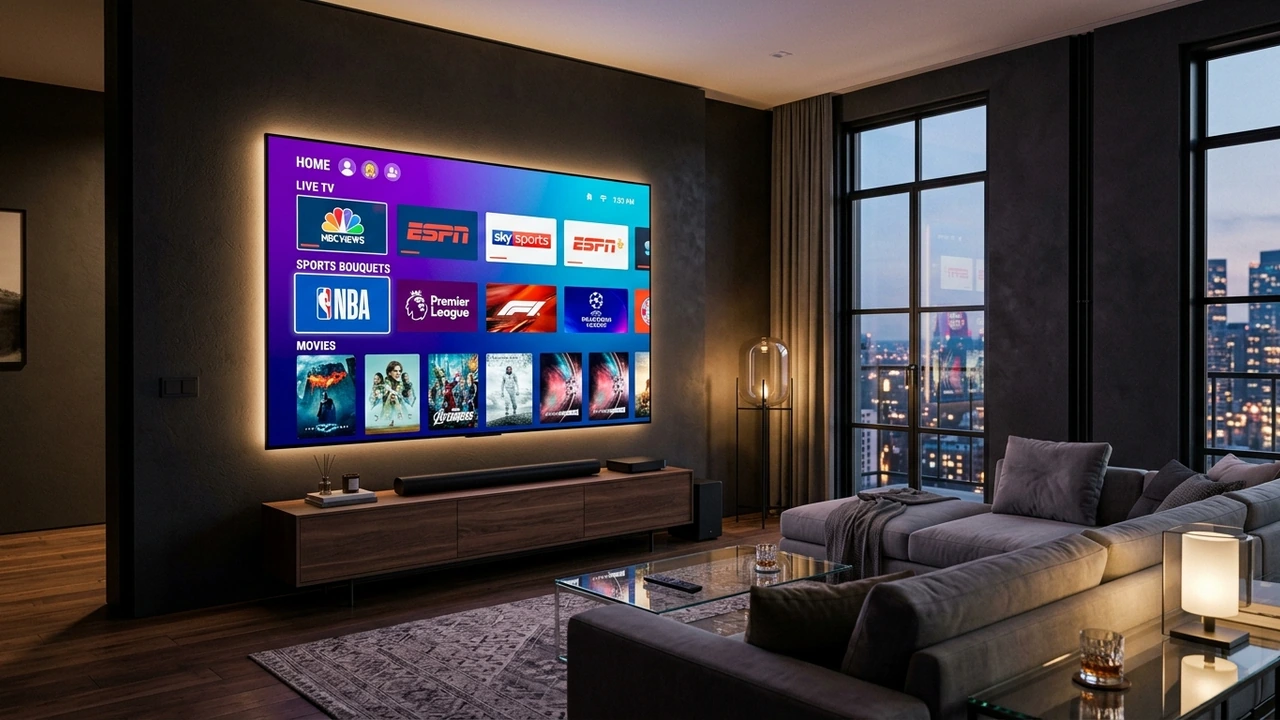
In the modern living room, the Smart TV reigns supreme. With ultra-thin bezels, vibrant OLED and QLED display panels, and native 4K and 8K visual processing engines, contemporary televisions manufactured by Samsung, LG, Sony, TCL, and Hisense are technological marvels. For millions of cord-cutters, the primary objective is straightforward: stream live high-definition television directly through the TV's native interface using a single remote control, without cluttering the entertainment console with external HDMI dongles, power bricks, or secondary remote controls.
However, achieving a smooth, broadcast-grade television streaming experience natively on a Smart TV presents unique technical challenges. Unlike open desktop environments or versatile Android streaming sticks, Smart TVs operate on proprietary, heavily sandboxed operating systems. Samsung utilizes Tizen OS, LG employs webOS, while brands like Sony, TCL, and Hisense run Android TV / Google TV. Each of these operating systems features distinct app store policies, memory management constraints, video decoding capabilities, and remote navigation ergonomics.
Furthermore, an IPTV app is only an empty client interface. To access live sports feeds, 24/7 news broadcasts, premium cinema channels, and international television, you must pair your chosen player application with a robust, enterprise-grade streaming infrastructure like the NixaTV IPTV platform and its expansive 20,000+ live channel catalog.
In this authoritative 2026 evaluation guide, we conduct an exhaustive technical breakdown of the best IPTV player applications available across all major Smart TV operating systems. We examine memory footprint constraints, evaluate the mechanics of web-based MAC address pairing, analyze remote control integration, and provide step-by-step setup guides to transform your Smart TV into a high-performance entertainment hub.
1. The Smart TV Operating System Landscape: Tizen vs. webOS vs. Android TV
Before downloading an application, you must understand the underlying operating system powering your television. The architecture of your TV dictates which applications you can install, how playlists are loaded, and how much video processing power is available.
┌──────────────────────────────────────────────────────────────────────────┐
│                   SMART TV OPERATING SYSTEM COMPARISON                   │
├──────────────────────────────────────────────────────────────────────────┤
│ 1. SAMSUNG TIZEN OS                                                      │
│    • Closed HTML5/Web-based ecosystem; strict App Store curation.        │
│    • Sideloading APKs is IMPOSSIBLE (requires Tizen Studio dev tools).   │
│    • Relies heavily on Cloud-Based MAC Pairing (e.g., IBO Player).       │
├──────────────────────────────────────────────────────────────────────────┤
│ 2. LG webOS                                                              │
│    • Proprietary Linux-based OS; optimized for Magic Remote pointer.     │
│    • Highly aggressive RAM management (kills background apps quickly).   │
│    • Strict app approval policies; utilizes web-based playlist syncing.  │
├──────────────────────────────────────────────────────────────────────────┤
│ 3. ANDROID TV & GOOGLE TV (Sony, TCL, Hisense, Philips)                  │
│    • Open Android Open Source Project (AOSP) ecosystem.                  │
│    • Full Google Play Store access + unrestricted APK sideloading.       │
│    • Supports industry-standard power players like TiviMate.             │
└──────────────────────────────────────────────────────────────────────────┘
Samsung Tizen OS: The Closed Web Ecosystem
Samsung is the world's largest television manufacturer, and its proprietary Tizen OS powers tens of millions of displays globally. Tizen applications are built primarily using HTML5, CSS, and JavaScript web frameworks packaged inside native wrappers.
Because Samsung strictly curates the Samsung Smart Hub App Store and completely blocks traditional Android .apk sideloading, users cannot install apps like TiviMate directly. Instead, Samsung users rely on dedicated Tizen-approved player clients—such as IBO Player, Smart IPTV, and Net IPTV—which utilize cloud-based MAC address pairing to manage playlists remotely via web browser.
LG webOS: Elegant Ergonomics with Strict Memory Limits
LG's webOS is widely celebrated for its intuitive, card-based interface and its patented Magic Remote, which functions as a gyroscopic on-screen laser pointer. However, LG televisions are engineered with conservative hardware memory profiles.
To maintain system fluidity for core TV functions, webOS enforces an aggressive "Low Memory Killer" (LMK) daemon. If an IPTV player application attempts to load an uncurated M3U playlist containing 50,000+ items and extensive EPG data into system RAM, webOS will abruptly terminate the application and kick the user back to the television home screen. Selecting a lightweight, memory-efficient player is critical for LG owners.
Android TV & Google TV: The Open Frontier
Televisions manufactured by Sony, TCL, Hisense, Philips, and Skyworth run Android TV or its refreshed Google TV skin. Because Google TV is built on the full Android operating system, it provides the ultimate freedom:
- Direct access to the comprehensive Google Play Store.
- The ability to install top-tier players like TiviMate IPTV Player with a single click.
- Full support for third-party sideloading via tools like Downloader.
- Extensive hardware-accelerated video decoding for advanced modern codecs like HEVC (H.265) and AV1.
2. The Best Smart TV IPTV Apps Ranked & Evaluated (2026 Edition)
We tested dozen of native applications across Samsung QLED, LG OLED, and Sony Bravia Google TVs. Below are the definitive rankings of the top IPTV player applications for Smart TVs in 2026.
┌──────────────────────────────────────────────────────────────────────────┐
│                     2026 SMART TV IPTV PLAYER RANKINGS                   │
├──────────────────────────────────────────────────────────────────────────┤
│ 1. IBO Player        ──► The Reining Champion for Samsung & LG Smart TVs │
│ 2. TiviMate          ──► The Undisputed Benchmark for Android / Google TV│
│ 3. IPTV Smarters Pro ──► The Universal Cross-Platform Dashboard          │
│ 4. Smart IPTV (SIPTV)──► The Veteran Minimalist MAC Pairing Pioneer      │
│ 5. Nanomid Player    ──► Premium Universal Streaming Player with DRM     │
│ 6. Net IPTV          ──► Reliable Secondary Backup Client for Tizen/webOS│
└──────────────────────────────────────────────────────────────────────────┘
1. IBO Player: The Undisputed Champion for Samsung & LG
If you own a modern Samsung Tizen TV or LG webOS TV, IBO Player is unequivocally the finest native application currently available in their respective app stores. Engineered specifically to overcome the memory and navigation constraints of closed television operating systems, IBO Player delivers a lightning-fast, visually stunning experience that feels like a native streaming service.
┌─────────────────────────────────────────────────────────────────────────┐
│                    IBO PLAYER: KEY HIGHLIGHTS FOR SMART TVS             │
├─────────────────────────────────────────────────────────────────────────┤
│ • Native availability in Samsung Smart Hub and LG Content Store         │
│ • Full Remote Control & LG Magic Remote Pointer Integration             │
│ • High-Efficiency Cloud-Based Playlist Management via Web Portal        │
│ • Full Xtream Codes API Support (Live TV, VOD, Series, Catch-up)        │
│ • Hardware-Accelerated 4K 60 FPS Video Playback with Low Memory Load    │
│ • Multi-Playlist Support with Instant Channel Searching                 │
└─────────────────────────────────────────────────────────────────────────┘
Why IBO Player Dominates Samsung & LG:
- Frictionless Web Activation: Instead of forcing you to painstakingly type out long playlist URLs using an on-screen remote keyboard, IBO Player displays a simple virtual Device MAC Address and Device Key. You visit their activation website from your laptop or smartphone, enter your NixaTV Xtream Codes credentials, and the application instantly syncs your channel guide across the cloud.
- Exceptional Stream Stability: IBO Player handles high-bitrate 1080p 60 FPS sports broadcasts without buffer stutter, utilizing the Smart TV's native hardware decoding pipeline to keep CPU temperatures low.
- Intuitive Remote Ergonomics: On LG TVs, IBO Player seamlessly tracks the Magic Remote's air-mouse cursor, allowing you to click channels, toggle audio tracks, or browse movie categories effortlessly. On Samsung remotes, all functions map logically to the directional D-pad and return keys.
Pricing: 7-day free trial; one-time lifetime device activation fee of approximately €8 ($8.50 USD).
2. TiviMate IPTV Player: The Sovereign King of Android TV
If your Smart TV is powered by Android TV or Google TV (Sony Bravia, TCL Google TV, Hisense, etc.), look no further than TiviMate. Widely celebrated by streaming purists as the single greatest television interface ever created, TiviMate transforms your Android TV into a broadcast-grade media powerhouse.
Standout Capabilities:
- True Television Guide Grid: Delivers a full-screen, multi-hour EPG program guide that looks and behaves exactly like premium satellite set-top boxes from Sky, DirecTV, or Virgin Media.
- Auto Frame Rate (AFR) Matching: Dynamically synchronizes your TV's native panel refresh rate (e.g., 50 Hz vs. 60 Hz) to the incoming broadcast stream, permanently eliminating motion judder during high-speed European soccer or North American football matches.
- Advanced Multi-View: Allows viewers to watch up to four live television channels simultaneously on a single screen—an unbeatable feature for sports fans tracking multiple games on Sunday afternoons.
3. IPTV Smarters Pro: The Universal Dashboard
Available natively across the Google Play Store, Samsung Smart Hub (in select regions), and LG Content Store, IPTV Smarters Pro provides a familiar, dashboard-style entertainment hub.
Key Features:
- Categorized Content Portals: Segregates programming into distinct visual hubs for Live TV, Movies, Series, and Catch-Up.
- Global Master Search: Allows users to query the entire NixaTV catalog by title, director, or actor across live feeds and on-demand video simultaneously.
- Integrated Subtitle & Audio Track Switching: Switch between audio language tracks and toggle closed captions with two clicks on your television remote.
4. Smart IPTV (SIPTV): The Minimalist Veteran
Smart IPTV (SIPTV) is one of the oldest and most dependable player clients in the history of smart television streaming. While its interface design is straightforward and minimalist compared to modern graphical launchers, its lightweight architecture makes it exceptionally fast on older televisions with limited processing power.
How It Works:
SIPTV identifies your television through a virtual MAC address. You navigate to https://siptv.app/mylist/ on any web browser, enter your TV's MAC address, paste your NixaTV M3U playlist link, and upload. The playlist is stored directly on the TV or retrieved from the cloud upon application launch.
Best For: Viewers who prefer simple, numbered channel lists and want an app that opens directly to live television without passing through complex menus.
3. Comprehensive Smart TV Platform & Feature Matrix
To assist you in selecting the ideal application for your specific television brand and operating system, consult our comprehensive feature breakdown:
| Feature / Metric | IBO Player | TiviMate IPTV | IPTV Smarters Pro | Smart IPTV (SIPTV) | Net IPTV |
|---|---|---|---|---|---|
| Primary OS Support | Samsung Tizen, LG webOS, Android | Android TV, Google TV | Samsung, LG, Android TV | Samsung Tizen, LG webOS | Samsung Tizen, LG webOS |
| App Store Availability | Native App Store | Google Play Store | Native App Store | Native / USB install | Native App Store |
| Activation Method | Cloud MAC Pairing | Username / Google Play | Xtream Codes API | Cloud MAC Pairing | Cloud MAC Pairing |
| Interface Style | Modern Graphical Portal | Broadcast Cable Grid | Modular Dashboard | Minimalist Channel List | Clean Tile List |
| LG Magic Remote Pointer | 10/10 (Full Support) | N/A (Android only) | 7.5/10 (Partial) | 7/10 (Basic) | 8/10 (Good) |
| EPG Guide Loading Speed | Very Fast | Blazing Fast | Fast | Moderate | Fast |
| Multi-Screen Support | No | Yes (Up to 9 screens) | Yes (Up to 4 screens) | No | No |
| VOD / Series Handling | Exceptional | Good | Exceptional | Poor (Live focused) | Basic |
| RAM Footprint on TV | Low (~80 MB) | Moderate (~120 MB) | High (~160 MB) | Ultra-Low (~35 MB) | Low (~70 MB) |
4. The Architecture of Device MAC Address Pairing Explained
One of the most frequent points of confusion for new Smart TV owners is the concept of Cloud-Based MAC Pairing.
Typing a 60-character streaming URL or complex password using a standard television remote control is tedious and prone to frustrating typographical errors. To eliminate this friction, Smart TV applications like IBO Player, Smart IPTV, and Net IPTV separate the user interface on the television from the playlist management portal on the web.
┌────────────────────────────────────────────────────────────────────────┐
│                   CLOUD-BASED MAC PAIRING ARCHITECTURE                 │
├────────────────────────────────────────────────────────────────────────┤
│ 1. Launch App on Smart TV (IBO Player / Smart IPTV)                   │
│    ➜ Screen displays: TV MAC Address (00:1a:79:xx:xx) & Device Key     │
│                                                                        │
│ 2. Open Web Browser on PC or Smartphone                                │
│    ➜ Navigate to official activation portal (e.g., iboplayer.com)      │
│                                                                        │
│ 3. Authenticate Device                                                 │
│    ➜ Enter your TV's displayed MAC Address and Device Key             │
│                                                                        │
│ 4. Bind Your NixaTV Credentials                                        │
│    ➜ Select "Add Playlist (Xtream Codes)"                             │
│    ➜ Input NixaTV Server URL + Username + Password                    │
│                                                                        │
│ 5. Reload Application on Television                                    │
│    ➜ Click "Refresh" on your TV remote                                 │
│    ➜ Complete 20,000+ channel lineup loads instantly into your TV!    │
└────────────────────────────────────────────────────────────────────────┘
Physical NIC MAC vs. Virtual Player MAC Address
[!NOTE] Important Distinction: The "MAC Address" displayed inside your IPTV player app is often a Virtual Software MAC generated specifically for that application, NOT the physical hardware MAC address printed on your television's rear label or found in your TV's network settings menu.
Always record and use the exact MAC address displayed directly on the TV screen inside the application's settings or welcome window when activating your device online.
Premium NixaTV 4K/8K Streaming — Save 61% Today
Unlock 50,000+ channels, 150,000+ VODs, and 60 FPS Anti-Freeze technology. Get our 12-Month Plan for just $69.99.
- Premium Anti-Freeze v2.0
- Instant WhatsApp Activation
5. Step-by-Step Setup Guides by Smart TV Brand
Follow these verified setup instructions to configure live television streaming on your television in under five minutes.
A. Samsung Smart TV Setup (Tizen OS via IBO Player)
- Turn on your Samsung television and press the Home button on your Samsung OneRemote.
- Navigate left to the Apps icon (Samsung Smart Hub App Store).
- Select the Search icon (magnifying glass) in the top-right corner.
- Type
IBO Playerand select the official app from the search results. - Click Install. Once installed, select Open.
- On the IBO Player welcome screen, record the displayed Device MAC Address and Device Key.
- Open a web browser on your smartphone, tablet, or computer and navigate to:
https://iboplayer.com/device/login. - Enter your TV's Device MAC and Device Key, then click Login.
- Click the Add Playlist button. Select Xtream Codes API.
- Input your credentials:
- Playlist Name:
NixaTV Live - Server URL:
http://line.nixatv.pro:8080(or your assigned activation endpoint) - Username:
[Your NixaTV Username] - Password:
[Your NixaTV Password]
- Playlist Name:
- Click Save. Return to your Samsung TV, press the Reload / Refresh button inside IBO Player, and enjoy your full television lineup!
B. LG Smart TV Setup (webOS via IBO Player)
- Press the Home button on your LG Magic Remote to launch the webOS dashboard.
- Select the LG Content Store (or Apps tile on modern webOS versions).
- Click the Search icon, enter
IBO Player, and click Install. - Launch the application. Note down your unique virtual MAC Address and Device Key.
- On your phone or computer, visit
https://iboplayer.com/device/login. - Authenticate using your LG TV's credentials.
- Select Add Playlist (Xtream Codes) and enter your NixaTV account details.
- Save the playlist, return to your LG television, click Reload, and navigate channels effortlessly using your LG Magic Remote pointer.
C. Android TV & Google TV Setup (Sony, TCL, Hisense, Philips via TiviMate)
Because Android TV features the native Google Play Store, you do not need to rely on external web portals:
- Open the Google Play Store on your Android TV or Google TV interface.
- Search for TiviMate IPTV Player and select Install.
- Open TiviMate, click Add Playlist, and choose Xtream Codes.
- Enter your NixaTV Server URL, Username, and Password.
- Click Next. TiviMate will ingest your channel catalog and EPG guide data automatically.
- Navigate to Settings > Playback and toggle Auto Frame Rate (AFR) to ON for optimal 60 FPS sports fluidity.
For additional device tutorials, consult our complete NixaTV installation guide.
6. Managing Massive Playlists: Preventing Smart TV Memory Crashes
Modern premium IPTV services like NixaTV provide comprehensive entertainment libraries featuring over 20,000+ live television channels and 60,000+ movies and series.
While high-end computers and streaming devices with 16 GB of RAM process these vast databases effortlessly, the onboard processors and limited RAM (often 1 GB to 1.5 GB) found inside Smart TVs can easily become overwhelmed if unmanaged.
┌────────────────────────────────────────────────────────────────────────┐
│               HOW TO OPTIMIZE PLAYLISTS FOR SMART TVS                  │
├────────────────────────────────────────────────────────────────────────┤
│ THE PROBLEM:                                                           │
│ Loading 20,000 live channels + 60,000 VOD movies simultaneously       │
│ into a Smart TV's 1GB RAM triggers the OS Low Memory Killer (LMK),     │
│ causing the app to crash to the TV home screen during EPG parsing.     │
├────────────────────────────────────────────────────────────────────────┤
│ THE SOLUTION (BOUQUET CURATION):                                       │
│ 1. Log in to your NixaTV subscriber management portal.                 │
│ 2. Use the Bouquet Editor to uncheck categories you never watch        │
│    (e.g., international feeds in languages you do not speak).          │
│ 3. Reduce your active playlist from 20,000 channels to 2,000 channels. │
│ 4. Result: App loads in 3 seconds; uses <60MB RAM; zero crashes!      │
└────────────────────────────────────────────────────────────────────────┘
By curating your channel bouquets to focus on the sports, cinema, news, and entertainment categories your household actually enjoys, your Smart TV player will boot in seconds, navigate channels with zero frame stutter, and never experience spontaneous memory crashes.
7. Smart TV Specific Hardware & Audio Bottlenecks
If you experience buffering, stuttering, or audio synchronization issues exclusively on your Smart TV, the root cause is frequently hardware-specific:
1. TV Chassis Wi-Fi Antenna Shielding (The Faraday Cage Effect)
Modern ultra-slim OLED and QLED televisions feature sleek, brushed-aluminum or sheet-metal backplates. If your TV is wall-mounted flush against a wall, the television's internal Wi-Fi antenna is essentially sandwiched between a metal chassis and dense drywall:
- This physical configuration acts as an electromagnetic shield, attenuating 5 GHz Wi-Fi signals by up to 15–25 dB.
- Speed tests run on a smartphone in front of the TV might show 250 Mbps, while the TV's internal network chip receives only 12 Mbps with high packet jitter.
- Remedy: Connect your Smart TV via a physical Cat6 Ethernet cable, or position a mesh Wi-Fi node in direct line-of-sight to the television.
2. Audio Codec Passthrough and Soundbar Latency
Live broadcast television frequently utilizes multi-channel Dolby Digital (AC3) or Dolby Digital Plus (EAC3) audio codecs. If your Smart TV is connected to an external soundbar or AV receiver via an optical TOSLINK cable or legacy HDMI ARC port:
- The television must decode the broadcast stream, transcode the multi-channel audio format, and relay the signal to the soundbar.
- This processing pipeline can introduce a noticeable 200 to 500 millisecond audio delay, causing lip movements on screen to fall out of sync with speech.
- Remedy: In your Smart TV's system audio settings, switch the Digital Audio Output format from Auto or PCM to Pass-Through (or Bitstream). This forces the TV to send raw, uncompressed audio directly to the soundbar, eliminating processing lag and restoring perfect synchronization.
8. Smart TV Remote Control Ergonomics & Custom Key Mapping
One of the greatest pleasures of streaming natively on a Smart TV is using the television's premium physical remote control rather than juggling multiple plastic controllers. However, because modern remotes (like Samsung's minimalist OneRemote or LG's Magic Remote) feature very few physical buttons compared to legacy cable remotes, mastering key gestures and shortcuts is essential for rapid channel surfing:
Samsung OneRemote Navigation Secrets
Samsung's OneRemote features a clean, button-light layout with a directional ring, select button, volume rocker, and channel rocker:
- The Channel Rocker Quick-Guide: On the Samsung OneRemote, pushing the Channel rocker switch straight in (pressing down like a button, rather than flicking it up or down) immediately summons the interactive channel bouquet list without interrupting video playback.
- Long-Press Select for Channel Context: While highlighting any live feed in IBO Player, press and hold the center Select button for two seconds. This reveals a contextual menu allowing you to add the channel to your Favorites bouquet, toggle aspect ratios, or inspect stream bitrate telemetry.
- The 123 / Color Key Shortcut: Pressing the virtual 123 / Color button on the OneRemote opens an on-screen number pad. In IBO Player and Smart IPTV, entering channel numbers (e.g., typing '1-0-4') jumps directly to that channel in your guide, replicating traditional cable dialing.
LG Magic Remote Pointer and Wheel Optimization
LG's Magic Remote is one of the most sophisticated input peripherals in consumer electronics:
- The Scroll Wheel as a Channel Surfer: The center scroll wheel on the Magic Remote acts as a rapid pagination tool. Spinning the wheel scrolls through hundreds of channels in seconds inside IBO Player, making browsing 20,000+ channel lineups effortless.
- Toggling the Air Pointer: Shaking the Magic Remote gently brings up the pink on-screen laser pointer. If you prefer classic directional button navigation, simply press any arrow on the directional pad, and the laser pointer instantly disappears, returning you to standard D-pad control.
- Long-Press Number Keys (Quick Access): In LG webOS, you can map number keys '1' through '9' to frequently used applications. By long-pressing '1', you can set your television to launch IBO Player instantly the moment your TV turns on.
9. Calibrating Smart TV Picture Settings for 60 FPS Live Sports
Many viewers spend thousands of dollars on high-end 4K OLED or Neo QLED displays, only to complain that live soccer, basketball, or racing looks blurry or unnatural. In reality, the issue is almost never the incoming NixaTV broadcast feed; it is the television's aggressive factory post-processing algorithms.
Televisions are shipped from factories with showroom settings designed to look eye-popping under harsh retail fluorescent lighting. These settings ruin the organic fluidity of 60 FPS live sports. Follow this calibration blueprint to optimize your picture:
1. Motion Interpolation (The Soap Opera Effect and Ball Ghosting)
TV manufacturers equip displays with motion smoothing engines—known as Auto Motion Plus on Samsung, TruMotion on LG, and Motionflow on Sony. These engines artificially generate and insert synthetic frames between real video frames:
- The Problem: When tracking a rapidly moving soccer ball, hockey puck, or football, the TV's processor cannot calculate synthetic frames fast enough. This results in the ball flickering, disappearing momentarily, or creating a blurry 'corona' artifact around players.
- The Fix: In your TV Picture Settings, set Motion Smoothing to Custom.
- Set De-Blur to 10 (sharpens fast-moving objects).
- Set De-Judder to 0 or 2 (eliminates artificial soap opera smoothing while keeping motion natural).
2. Disable Aggressive Noise Reduction
Modern digital broadcasts delivered via NixaTV are already pristine, low-noise digital streams. Factory settings like Digital Clean View, MPEG Noise Filter, and Dynamic Contrast attempt to smooth out video noise, but in doing so, they blur subtle details such as grass blades on a football pitch or crowd textures:
- Turn Digital Clean View / Noise Reduction completely OFF.
- Turn Dynamic Contrast to OFF or Low to preserve shadow details during dark evening stadium broadcasts.
3. Audio Passthrough and eARC Soundbar Lip-Sync Calibration
When streaming live television with multi-channel Dolby Digital audio, processing audio through soundbars or AV receivers can cause speech to lag behind mouth movements:
- In your Smart TV's system sound settings, switch the Digital Audio Output format from Auto or PCM to Pass-Through (or Bitstream).
- Ensure your soundbar is connected to the television's designated HDMI eARC (Enhanced Audio Return Channel) port using a certified Ultra High-Speed HDMI cable.
- If a slight delay remains, navigate to your TV's AV Sync / Audio Delay slider and increment in 20ms steps until speech synchronizes perfectly.
Premium NixaTV 4K/8K Streaming — Save 61% Today
Unlock 50,000+ channels, 150,000+ VODs, and 60 FPS Anti-Freeze technology. Get our 12-Month Plan for just $69.99.
- Premium Anti-Freeze v2.0
- Instant WhatsApp Activation
Frequently Asked Questions
11. Conclusion: The Ultimate Native Living Room Experience
Transforming your Smart TV into a state-of-the-art live television center delivers the ultimate entertainment convenience. You preserve a clean, wire-free living room aesthetic, retain full control through your television's premium remote, and bypass high-cost cable contracts permanently.
By pairing a dedicated, memory-efficient application like IBO Player on Samsung/LG TVs or TiviMate on Android TV with the rock-solid, multi-server infrastructure of NixaTV IPTV, you unlock access to over 20,000+ live broadcast channels, crystal-clear 4K sports, and expansive on-demand libraries with zero buffering and zero hassle.
Ready to unlock the true potential of your Smart TV?
- Explore our expansive lineup of 20,000+ live broadcast channels.
- Choose your multi-connection NixaTV subscription plan.
- Follow our illustrated Smart TV installation guides.
- Learn more about our private enterprise infrastructure in how NixaTV works.
- Have technical questions? Our dedicated engineering support team is available 24/7 via the contact helpdesk.